Manage YooKassa Settings in Medusa Admin
In this guide, you'll learn how to view and edit YooKassa integration settings in Medusa Admin via the Integration Module.
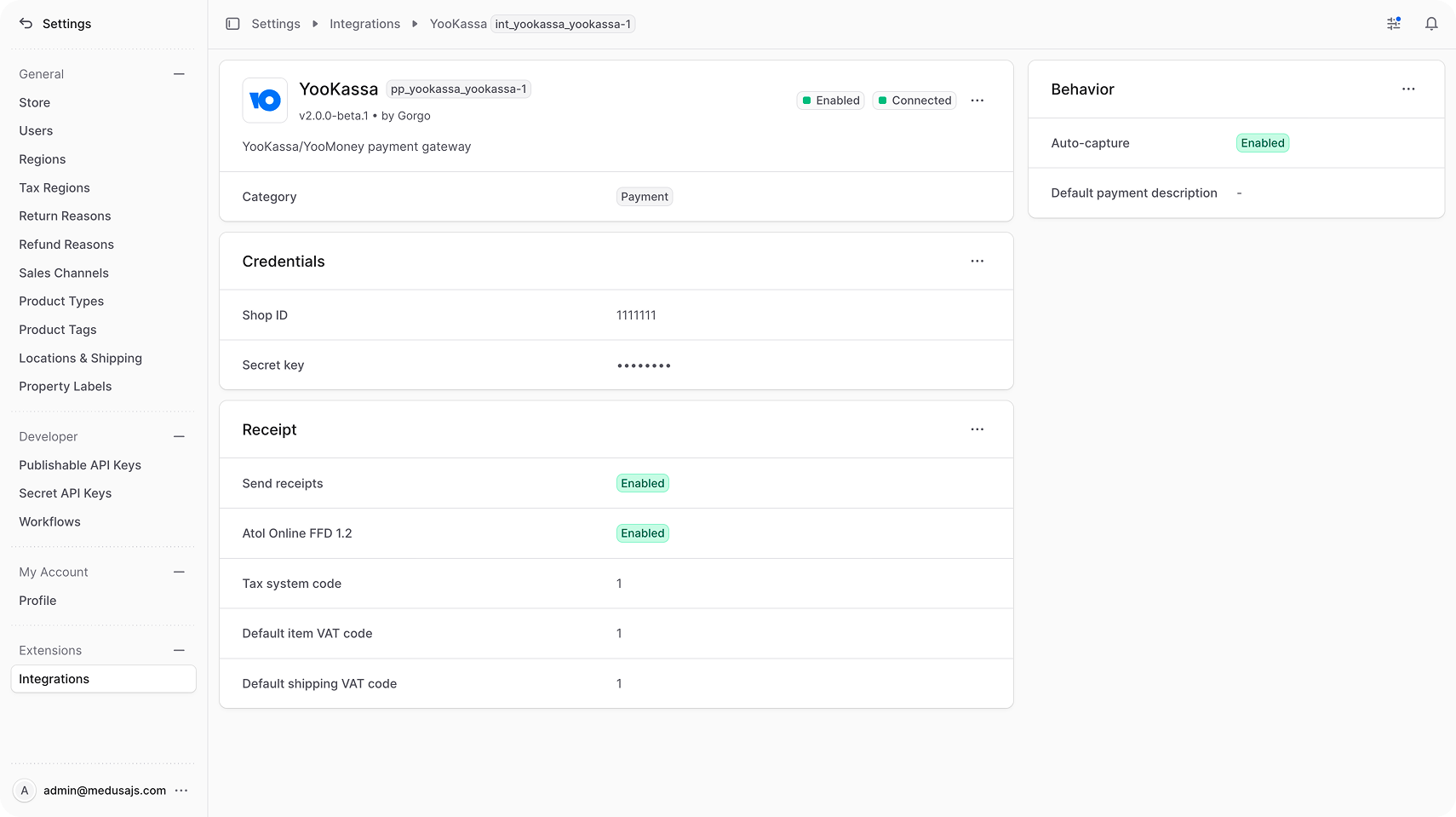
View YooKassa Details
To view the YooKassa details:
- Open Medusa Admin.
- Go to Settings → Integrations → YooKassa.
This opens the YooKassa settings page where you can review the credential details, receipt generation and behavior payment parameters.
Edit YooKassa Credential Parameters
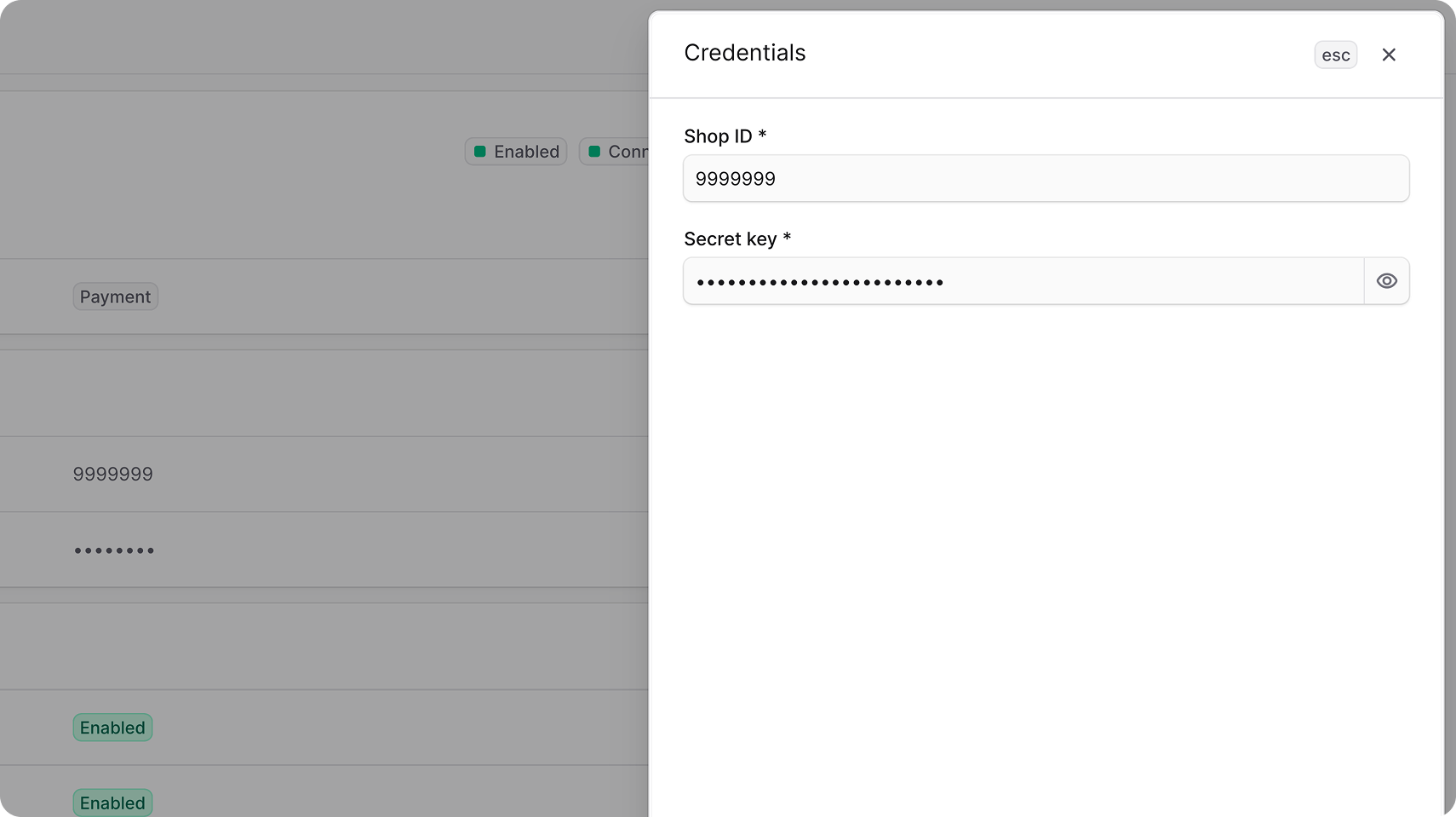
You can update the Terminal key and Password from the first section on the YooKassa settings page.
To edit the credential parameters:
- Go to Settings → Integrations → YooKassa.
- In the Credentials section, click the action menu in the section's header.
- Choose Edit.
- In the side panel that opens, update Shop ID and Secret Key.
- Click Save.
Edit Receipt Generation Details
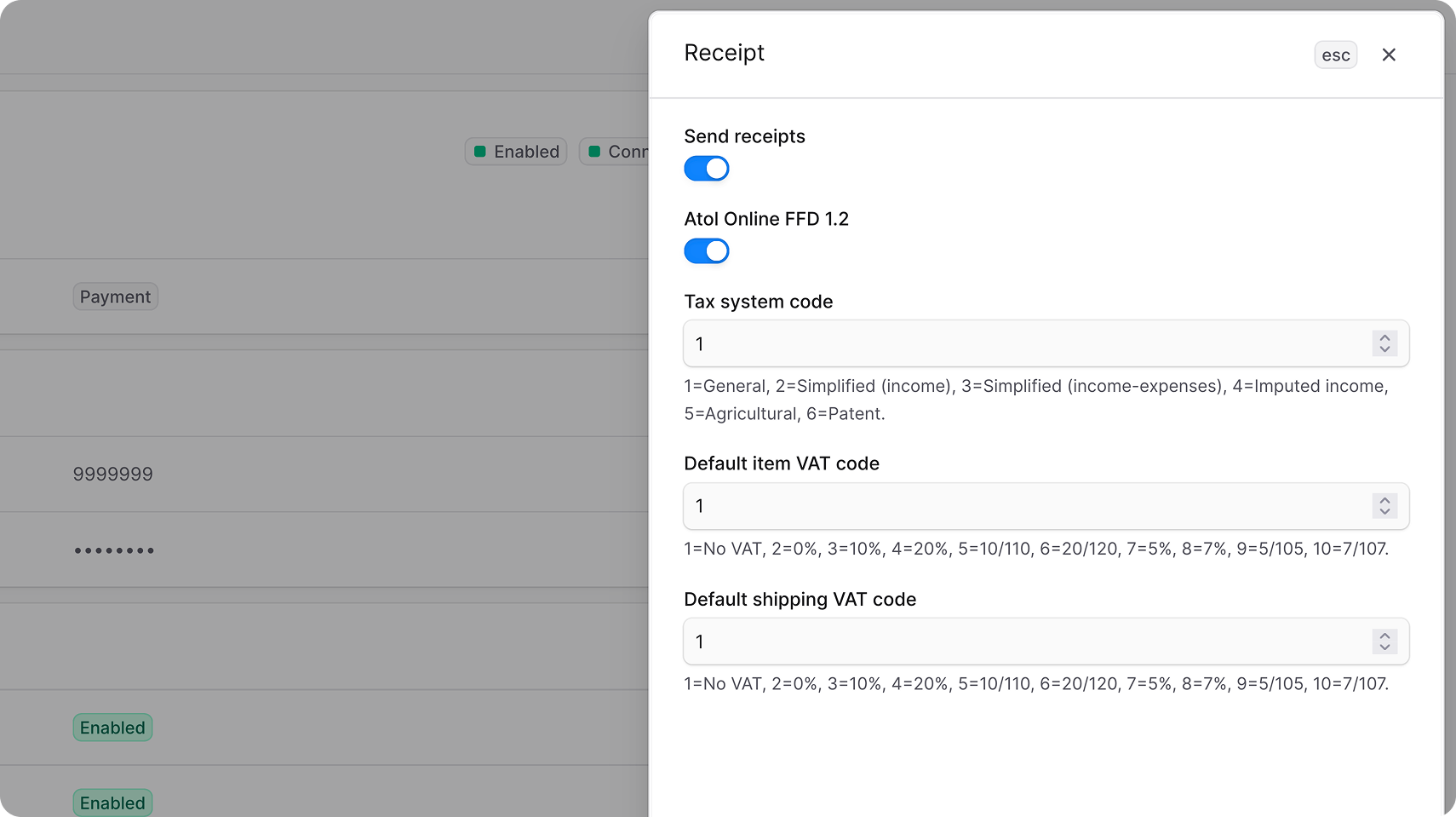
The Receipt section stores the receipt generation according to Russian fiscal data format (FFD).
To edit the receipt details:
- Go to Settings → Integrations → YooKassa.
- In the Receipt section, click the action menu in the section's header.
- Choose Edit.
- In the side panel that opens, enable or disable Atol Online FFD 1.2 sales register, update tax system code, default VAT rates for products and shipping.
- Click Save.
Edit Behavior Type
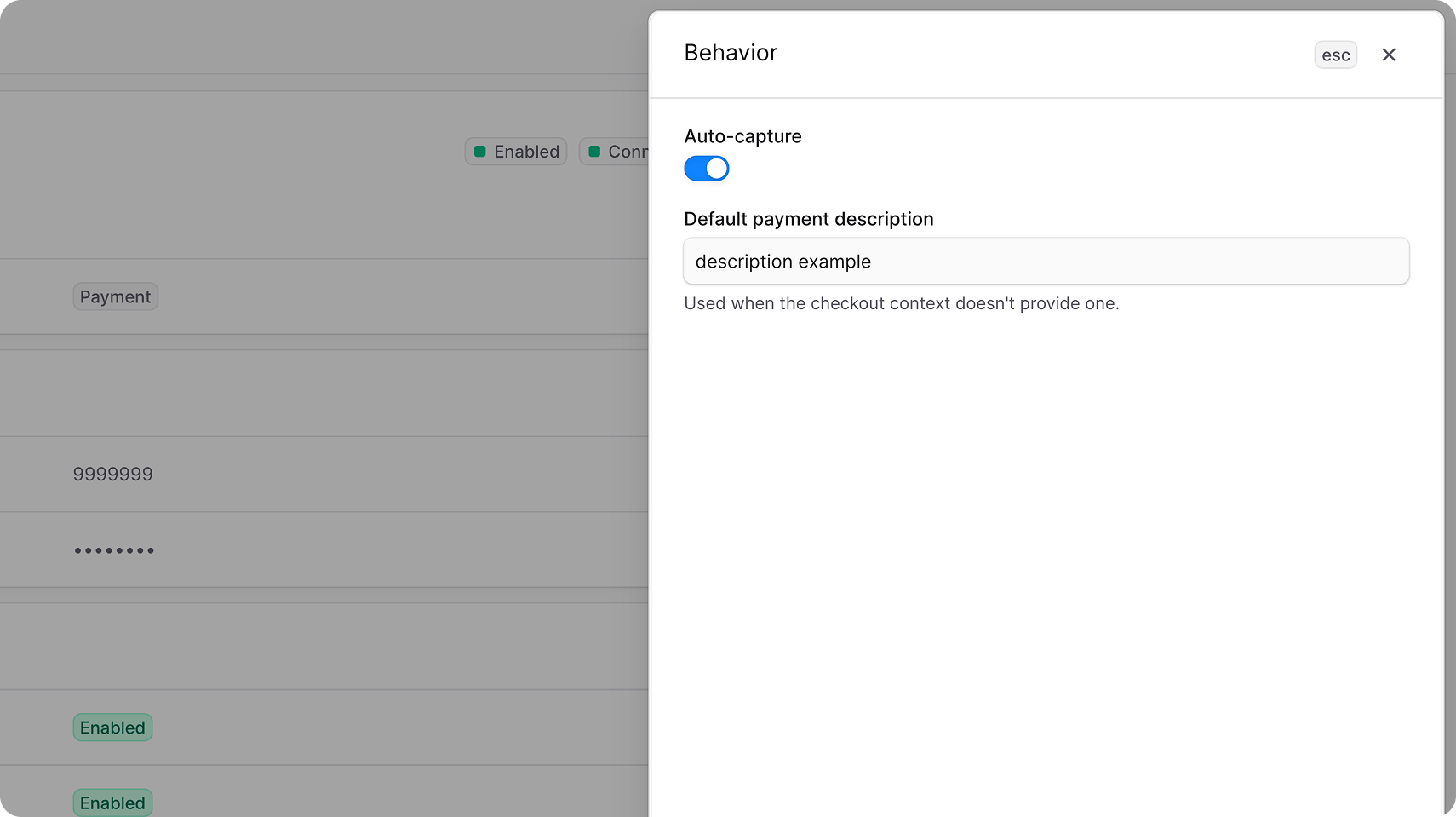
The Behavior section determines the payments processing type.
If auto-capture is enabled, one-step payment is used. If it's disabled, two-step payment is used.
To edit the payment and VAT settings:
- Go to Settings → Integrations → YooKassa.
- In the Behavior section, click the action menu in the section's header.
- Choose Edit.
- In the side panel that opens, update the auto-capture payment type and default payment description.
- Click Save.
Add Payment Provider
To add a payment providers displayed in the Storefront for YooKassa:
- Go to Settings → Regions.
- Choose your region.
- In the first section, click the action menu in the section's header.
- Choose Edit.
- In the modal that opens:
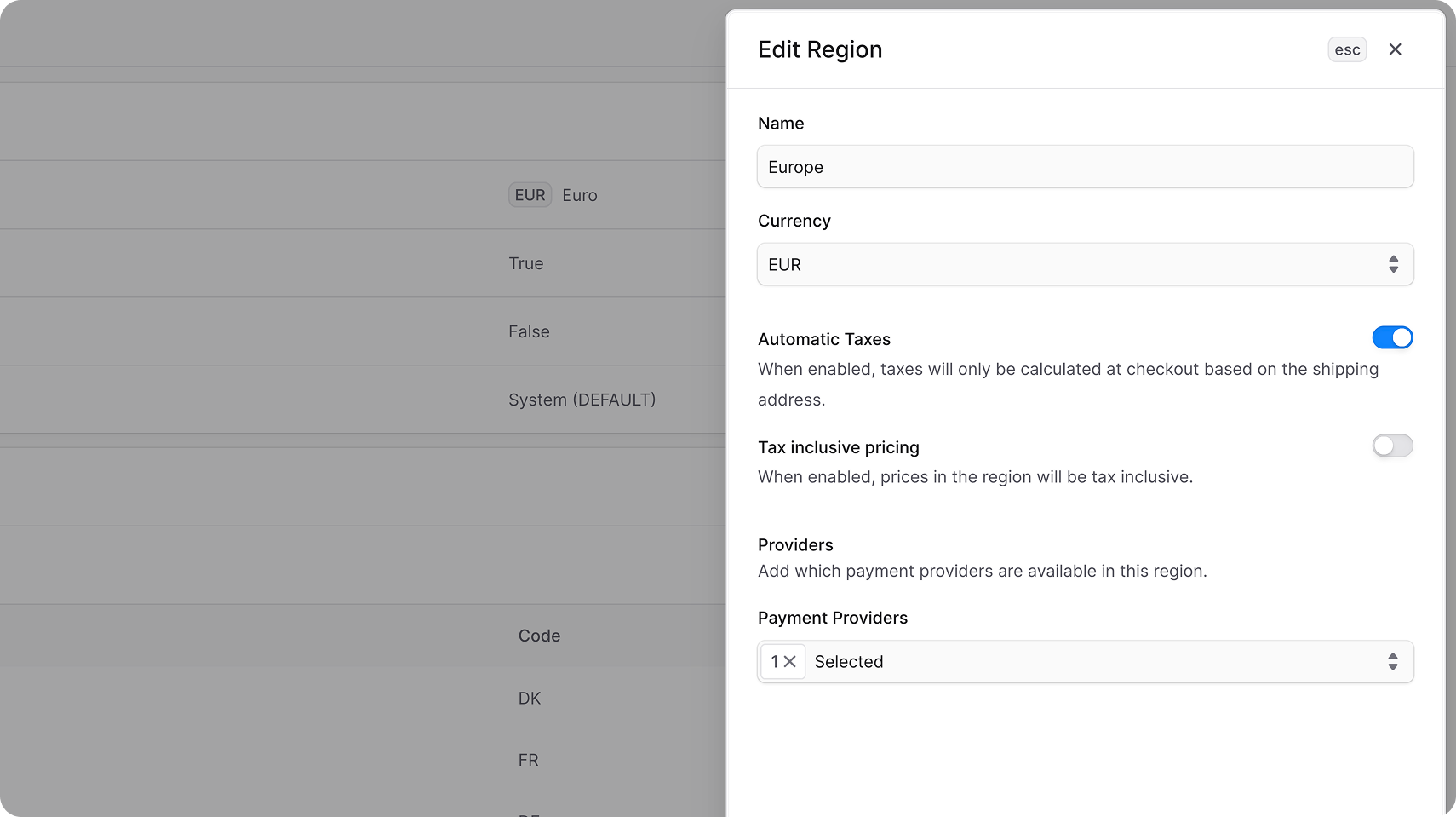
- Add YooKassa to Payment Providers.
- Click Save.