Manage T-Kassa Settings in Medusa Admin
In this guide, you'll learn how to view and edit T-Kassa integration settings in Medusa Admin via the Integration Module.
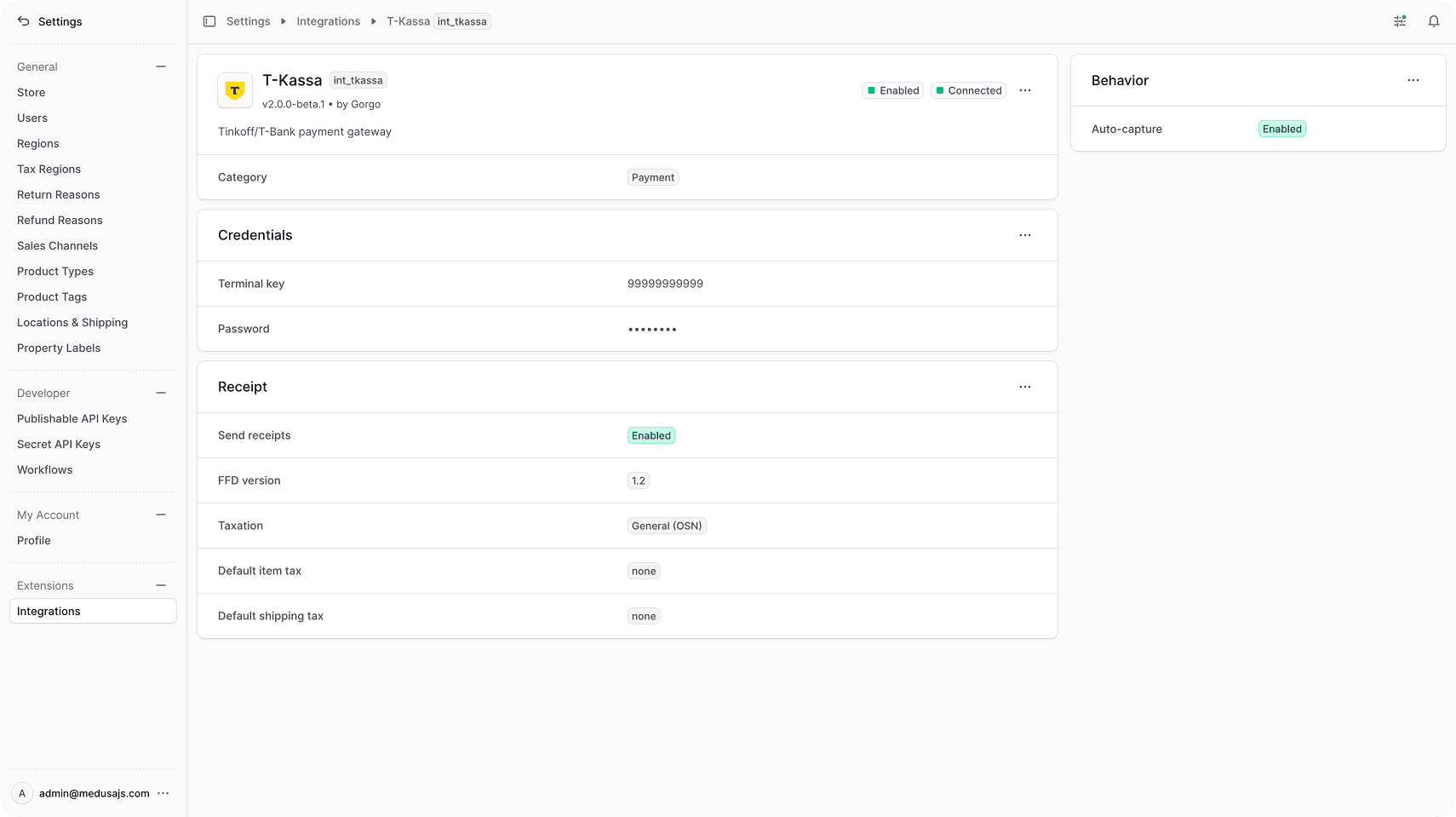
View T-Kassa Details
To view the T-Kassa details:
- Open Medusa Admin.
- Go to Settings → Integrations → T-Kassa.
This opens the T-Kassa settings page where you can review the credential details, receipt generation and behavior payment parameters.
Edit T-Kassa Credential Parameters
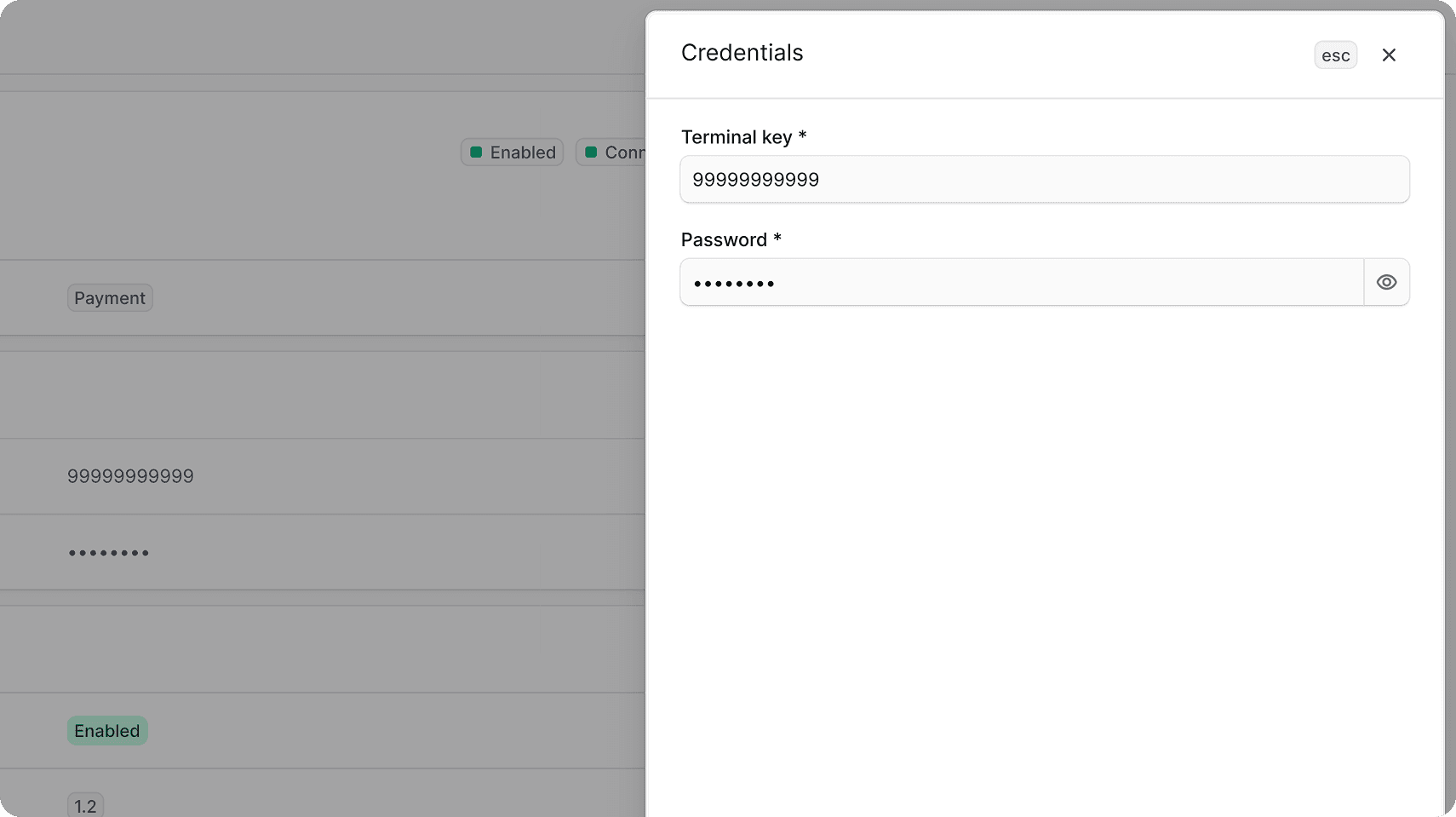
You can update the Terminal key and Password from the first section on the T-Kassa settings page.
To edit the credential parameters:
- Go to Settings → Integrations → T-Kassa.
- In the Credentials section, click the action menu in the section's header.
- Choose Edit.
- In the side panel that opens, update the Terminal key and Password.
- Click Save.
Edit Receipt Generation Details
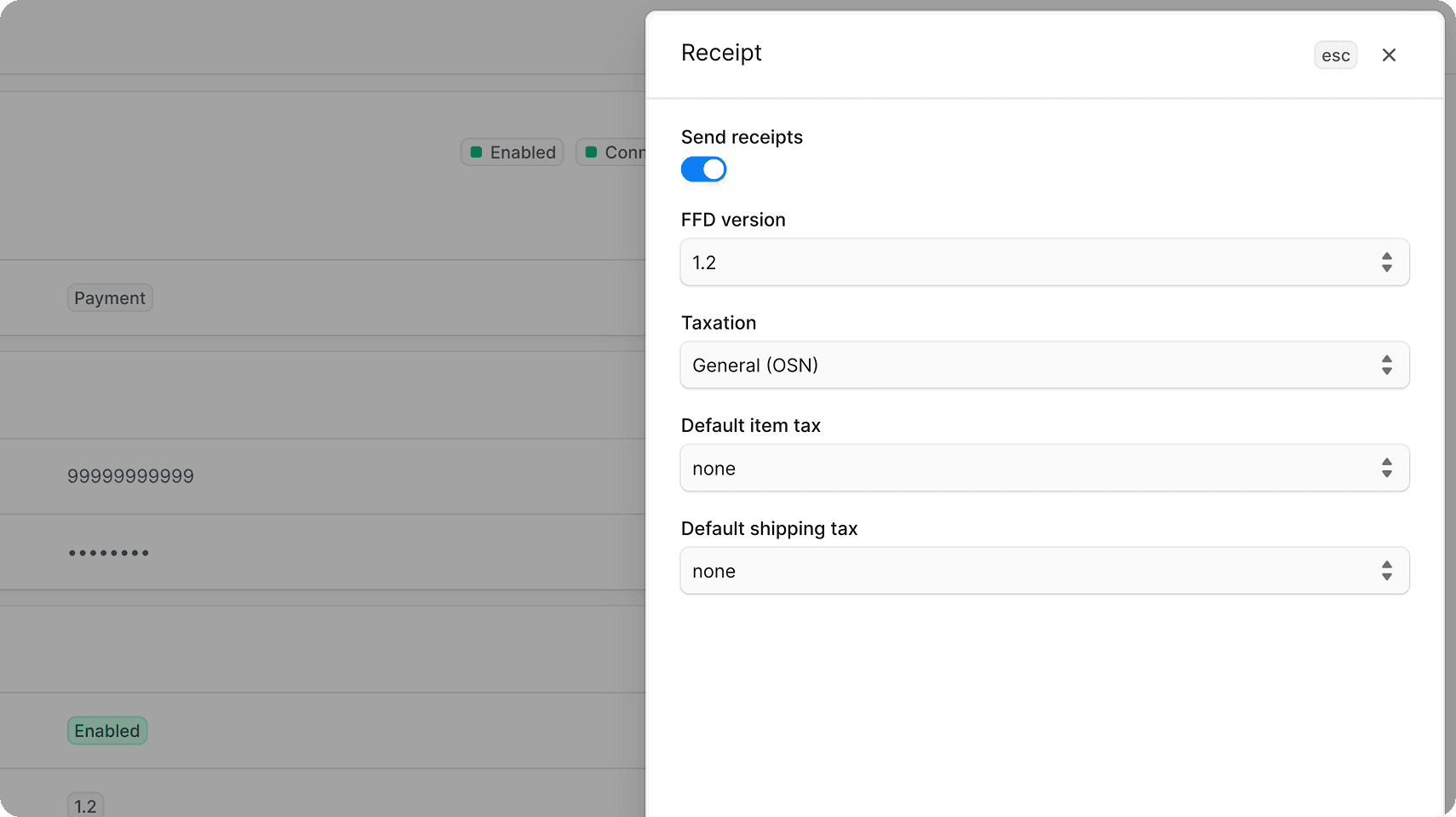
The Receipt section stores the receipt generation according to Russian fiscal data format (FFD).
To edit the receipt details:
- Go to Settings → Integrations → T-Kassa.
- In the Receipt section, click the action menu in the section's header.
- Choose Edit.
- In the side panel that opens, update the fiscal data format version, tax system, default VAT rates for products and shipping.
- Click Save.
Edit Behavior Type
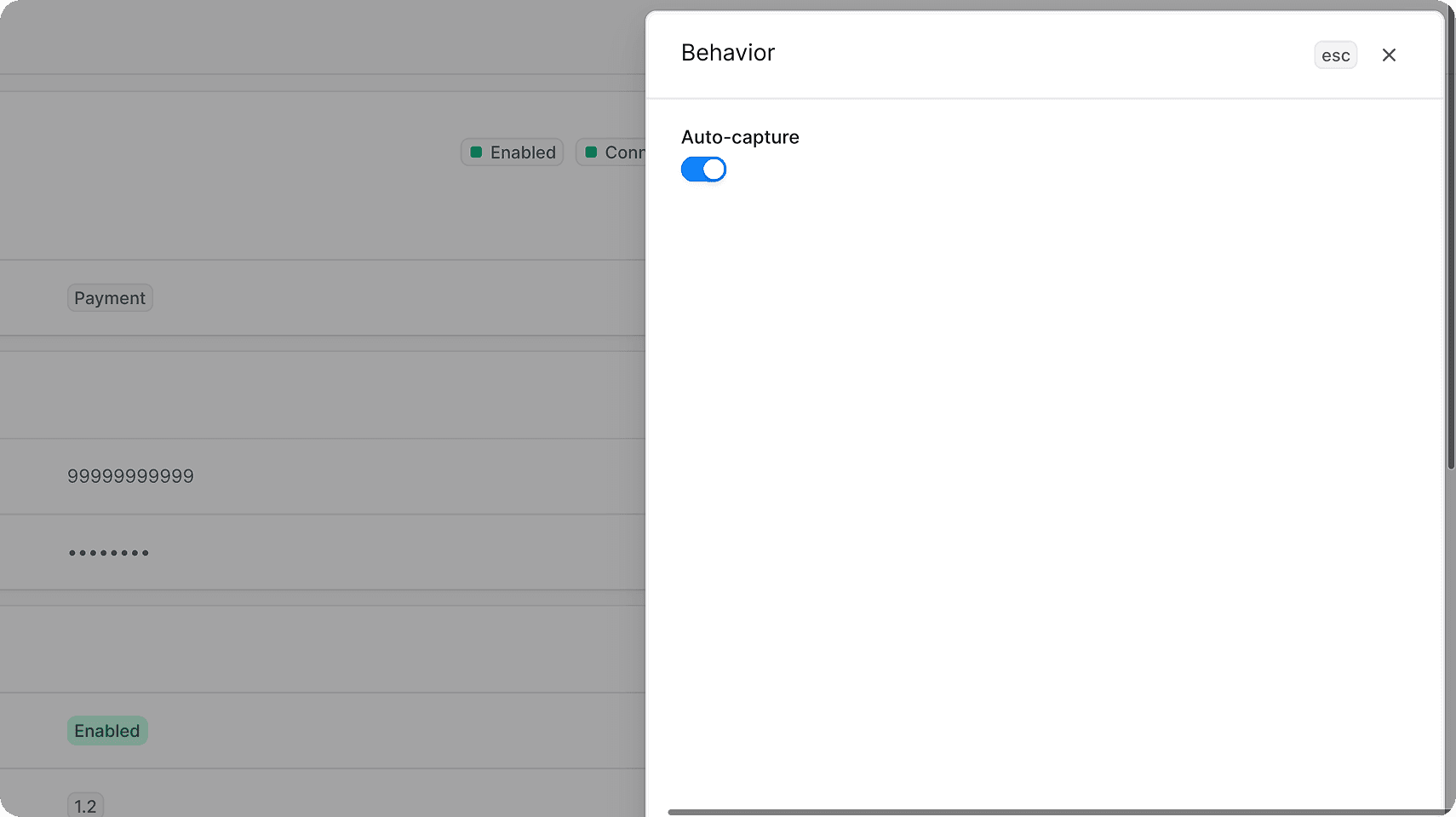
The Behavior section determines the payments processing type.
If auto-capture is enabled, one-step payment is used. If it's disabled, two-step payment is used.
To edit the payment and VAT settings:
- Go to Settings → Integrations → T-Kassa.
- In the Behavior section, click the action menu in the section's header.
- Choose Edit.
- In the side panel that opens, update the auto-capture payment type.
- Click Save.
Add Payment Provider
To add a payment providers displayed in the Storefront for T-Kassa:
- Go to Settings → Regions.
- Choose your region.
- In the first section, click the action menu in the section's header.
- Choose Edit.
- In the modal that opens:
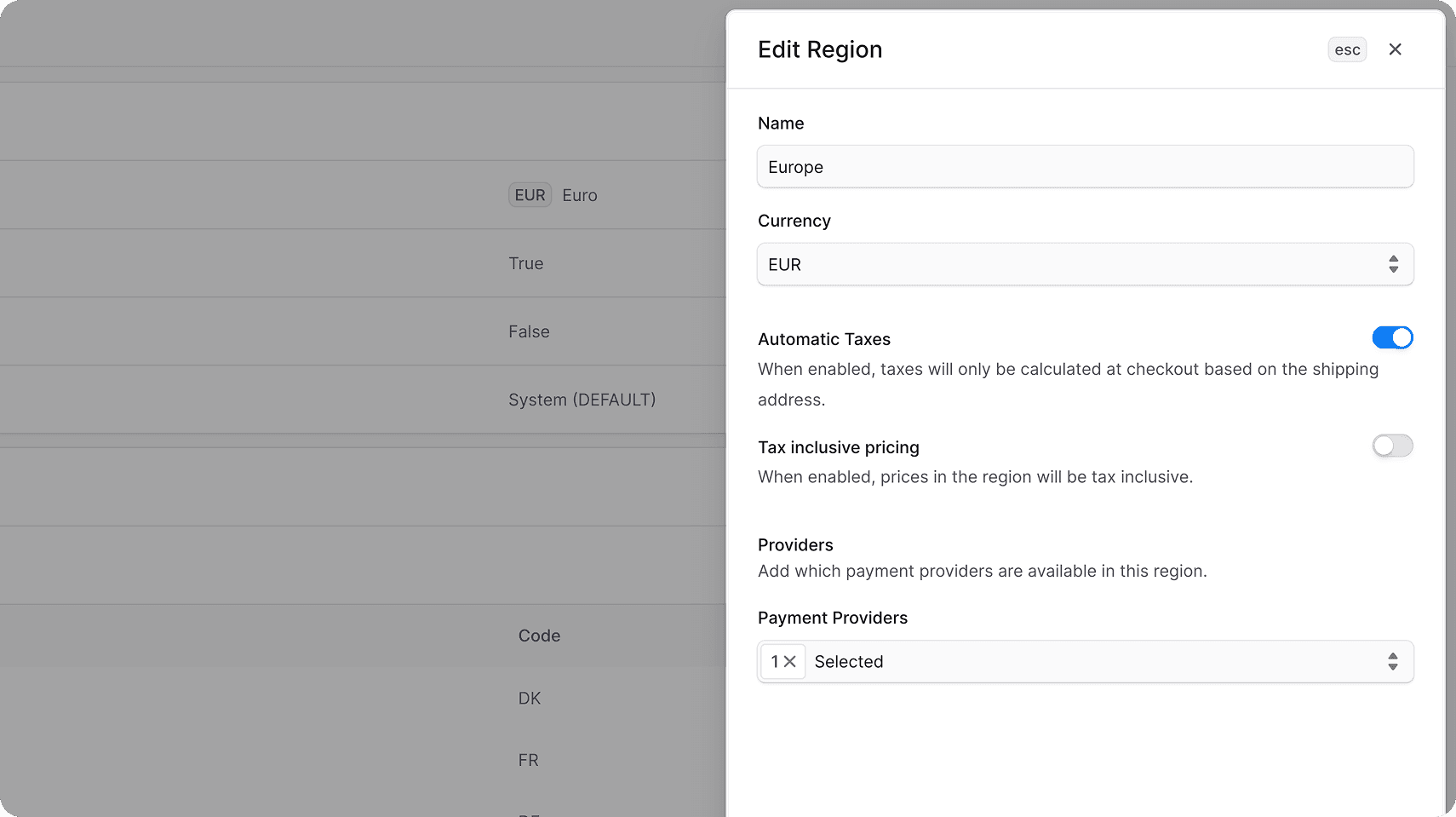
- Add TKassa to Payment Providers.
- Click Save.